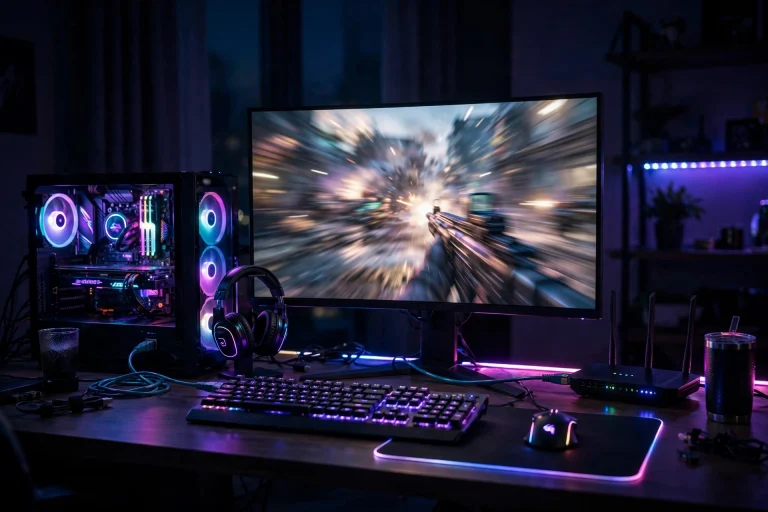
Does fullscreen mode give more fps than borderless? (Tested & Explained)
\u26a1 Quick answer
Yes — exclusive fullscreen usually gives slightly more FPS than borderless windowed, but the gap is typically small and sometimes zero. On modern Windows systems, borderless mode has improved so much that many players will not notice any difference at all. If you want every last frame and the lowest input lag, fullscreen is still the safer pick. If you alt-tab a lot, stream, or use a second monitor, borderless is often worth the tiny cost. The rest of this guide explains why the difference exists, what reported tests actually show, and how to set your game up either way.
The Evidence: What Tests Actually Show
When players test fullscreen against borderless, the pattern is consistent: fullscreen wins by a small margin in some games, ties in others, and almost never loses by a meaningful amount. The difference is best described as a typical, reported range — from no difference at all up to a small handful of frames per second — rather than a fixed number you can count on.
That is because the result depends on your hardware, your drivers, your Windows version, and the game itself. A lightweight esports title running at very high frame rates behaves differently from a heavy single-player game that is already maxing out your graphics card. In the first case, small system overheads are easier to measure. In the second case, your GPU is the limit, and the display mode barely matters.
There is also a ceiling on how much any display tweak can help in online games. Valorant’s official servers run at 128-tick, while CS2 uses a sub-tick system. In plain terms, the server decides how the game world updates, and that architecture caps how much client-side tweaks like display mode can change your experience. Chasing a tiny FPS gain will not rewrite how the server processes your actions.
So treat any headline number with suspicion. If a video claims fullscreen always adds a huge boost, that result came from one specific PC, one game, and one set of drivers. Your results will land somewhere in the typical range: small, real in some setups, and invisible in others.
Why It Works This Way
To understand the gap, it helps to know what each mode actually does.
In exclusive fullscreen, the game takes direct control of your display. It sets the resolution and refresh rate itself, and frames go from the game to your screen with as little in between as possible. Windows steps back, which is why your screen may flicker or go black for a second when you alt-tab in and out.
In borderless windowed mode — sometimes called fullscreen windowed — the game runs in a window sized to fill your screen. Your desktop still exists underneath, managed by Windows’ desktop compositor. That compositor is what lets you alt-tab instantly, overlay notifications, and move your mouse to a second monitor smoothly. The trade-off is that frames pass through an extra layer before reaching your eyes, which can add a small amount of overhead and, in some cases, a touch of latency.
Modern Windows has narrowed this gap a lot. Recent versions route borderless games through optimizations that behave much more like true fullscreen, which is why the old advice — “borderless always costs you performance” — no longer holds as a rule. Fullscreen optimizations and Game Mode effects are small and system-dependent in current Windows, so the honest advice is to test them on and off per game rather than follow dogma.
| Factor | Exclusive Fullscreen | Borderless Windowed |
|---|---|---|
| Typical FPS | Slightly higher or equal | Slightly lower or equal |
| Input lag | Usually the lowest | Close behind on modern Windows |
| Alt-tab speed | Slow, screen may flicker | Instant |
| Second monitor use | Awkward | Easy and smooth |
| Overlays and notifications | Limited | Fully supported |
| Best for | Maximum performance | Convenience and multitasking |
When It Matters — and When It Honestly Does Not
Fullscreen matters most in a few clear situations. If you play competitive shooters and your frame rate sits close to your monitor’s refresh rate, every frame helps you stay smooth and consistent. If you are on an older or weaker PC where the GPU and CPU are already struggling, removing even a small overhead can be the difference between playable and choppy. And if a game feels like it has extra input delay in borderless mode on your system, trust that feeling and switch — your setup is the only test that counts.
It honestly does not matter when your PC is comfortably powerful for the game you are playing. If your frame rate is far above your refresh rate with room to spare, a small difference between modes is invisible. It also matters less in single-player, story-driven, or turn-based games, where instant alt-tabbing and easy multitasking are worth more than a frame or two.
There is one related setting that matters more than the display mode for many players: your frame rate cap. The universal FPS-cap recipe with a variable refresh rate (VRR) monitor is to cap your frame rate about 3 FPS below your refresh rate. This keeps you inside the VRR window, so you get smooth, tear-free frames without the added lag of V-Sync. Getting this cap right will usually improve how a game feels more than switching display modes will. And if you are curious how frame rate connects to responsiveness more broadly, see our guide: does higher fps reduce input lag even above refresh rate.
How to Apply It: Exact Settings to Use
Follow these steps to test both modes properly on your own system:
- Pick one game and one repeatable scene. Use the same map, area, or benchmark run for both tests so the comparison is fair.
- Set exclusive fullscreen first. In the game’s display settings, choose fullscreen, set your native resolution, and confirm your monitor is running at its full refresh rate.
- Play or run the scene for a few minutes. Note your average FPS and, more importantly, how the game feels — smoothness and mouse response matter more than a single peak number.
- Switch to borderless windowed. Change only the display mode, leave every other setting alone, and repeat the exact same scene.
- Compare and decide. If fullscreen is noticeably smoother, keep it for that game. If the two feel identical, choose borderless for the convenience.
- Set your frame cap. If you have a VRR monitor (G-Sync or FreeSync), cap your FPS about 3 below your refresh rate, either in the game or in your GPU control panel, and leave V-Sync off in-game.
- Test the Windows toggles. Try Game Mode and fullscreen optimizations on and off for the game you play most. Effects are small and system-dependent, so keep whichever combination feels best on your PC rather than copying someone else’s settings.
While you are tuning, it is worth checking what else might be eating frames in the background — for example, does recording gameplay lower fps if you capture or stream your sessions. And once your local setup feels right, the next bottleneck is often your connection, which is why many players also ask does a gaming router actually reduce lag.
FAQ
Is borderless windowed bad for gaming?
No. On modern Windows, borderless performs very close to exclusive fullscreen in most games, and it gives you instant alt-tabbing and easy second-monitor use. It is a perfectly good default for casual and single-player gaming.
Does fullscreen reduce input lag compared to borderless?
It can, slightly, because frames reach the screen through a more direct path. The difference is small on current systems, though, and a good FPS cap inside your VRR range usually improves responsiveness more noticeably.
Should competitive players always use fullscreen?
Fullscreen is the safer default for competitive play because it typically offers the highest FPS and lowest latency. But test your main game both ways — if borderless feels identical on your system, its convenience may be worth more to you.
Conclusion
Fullscreen does give more FPS than borderless in many setups — just not by much, and not always. The typical difference ranges from zero to a small handful of frames, shaped by your hardware, drivers, and the game itself. Use exclusive fullscreen when you are chasing maximum performance in competitive titles, use borderless when convenience matters more, and either way, set a smart frame cap about 3 FPS below your refresh rate if you have a VRR monitor. Test both modes in your own game, trust what you measure, and spend the time you save actually playing.